Submodules
Git submodules allow you to embed one Git repository inside another as a subdirectory while keeping their histories separate. They are commonly used to include shared libraries or third-party dependencies directly in a project.
See also Git Submodules in Git documentation.
Viewing Submodules
When you open a repository that contains submodules, they are listed in the Submodules section of the Branches panel.
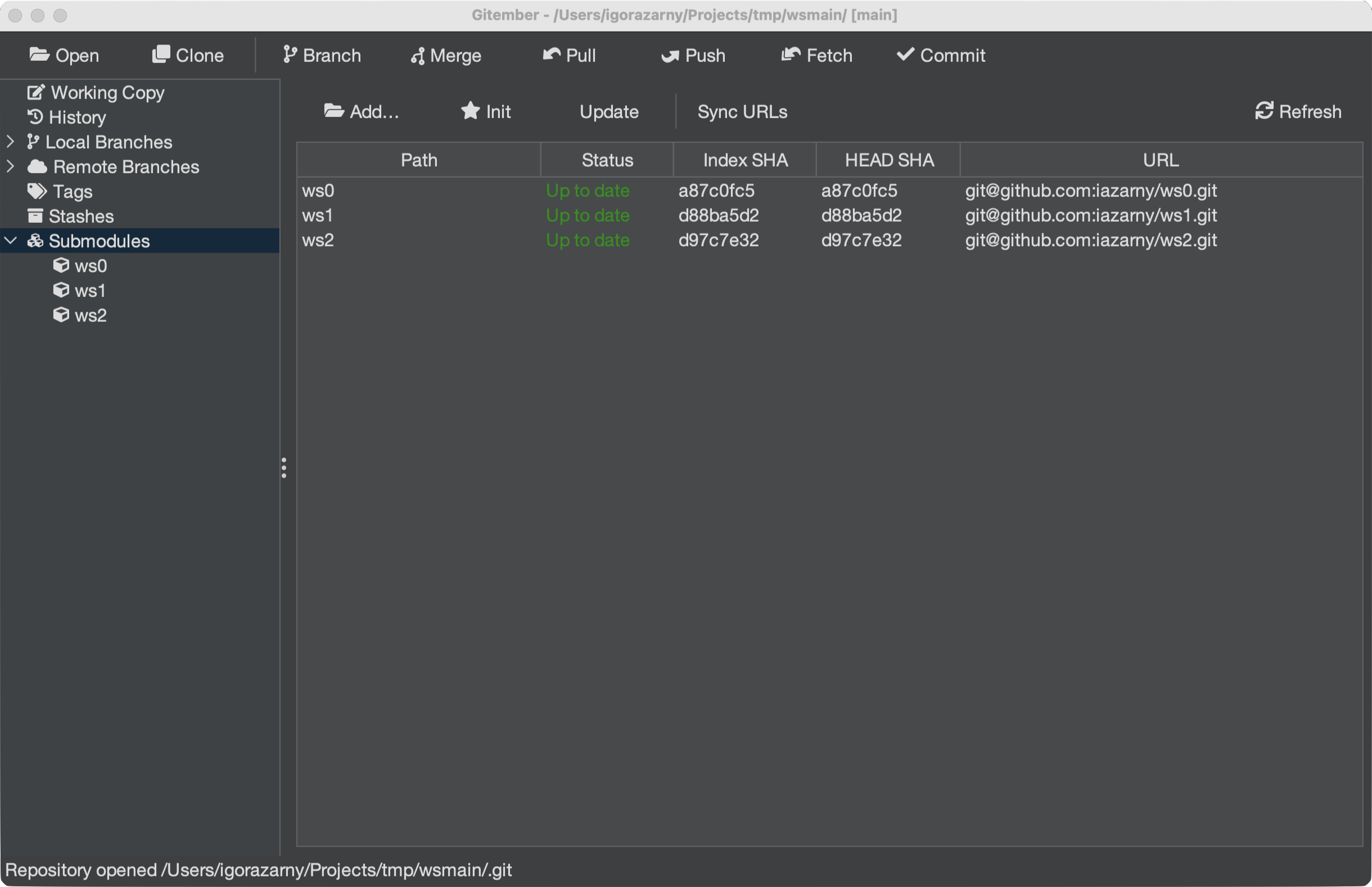
Each entry shows:
| Column | Description |
|---|---|
| Name | The path of the submodule inside the parent repository. |
| URL | The remote URL the submodule points to. |
| SHA | The commit SHA the parent repository currently has checked out for the submodule. |
Adding a Submodule
- Open Repository → Submodules → Add Submodule…, or click Add… on the Submodules panel.
- Enter the remote URL and the path inside this repository (for example
libs/shared). - Gitember clones the repository, writes
.gitmodules, and stages the gitlink. - Use Commit submodule change… (or a normal commit) to record the new submodule.
Initializing and Updating
After cloning a repository or after a pull that changed the recorded submodule commit, the submodule directories may be empty or out of date.
| Action | What it runs |
|---|---|
| Initialize Submodules | git submodule init — copies URLs from .gitmodules into .git/config |
| Update Submodules | git submodule init then git submodule update |
| Recursive Update | The same update, then repeats it inside each checked-out submodule |
Progress is shown in the status bar. Right-click a single row to initialize or update only that path.
Synchronising Submodule URLs
If the remote URL of a submodule has changed in .gitmodules, you need to synchronise the recorded URL before updating:
- Open the Repository menu.
- Select Sync Submodules.
This propagates the new URL from .gitmodules into each submodule's local configuration.
Opening a Submodule
To work inside a submodule as if it were a standalone repository:
- Double-click the submodule entry in the Submodules panel, or right-click Open.
- Gitember opens the submodule as its own repository.
The working tree must already be initialized and updated.
Commit, Diff, Status, and Remove
Right-click a submodule in the table or the tree:
- Commit submodule change… — stages the gitlink (and
.gitmodulesif needed) and commits only those paths. - Show diff — gitlink diff between the parent index SHA and the submodule
HEAD. - Show status — path, URL, status, and both SHAs.
- Remove… / Remove (force) —
git submodule deinitplusgit rm, then deletes.git/modules/<path>. Force discards local changes inside the submodule.
Summary
| Action | How to trigger |
|---|---|
| View submodules | Branches panel → Submodules section |
| Add a submodule | Repository → Submodules → Add Submodule… |
| Initialise submodules | Repository → Submodules → Initialize Submodules |
| Update submodules | Repository → Submodules → Update Submodules |
| Recursive update | Repository → Submodules → Recursive Update |
| Sync changed remote URLs | Repository → Submodules → Sync Submodule URLs |
| Commit / diff / status / remove | Right-click a submodule row |
| Open submodule as standalone repo | Double-click submodule entry |