Workspace
A Workspace groups several Git repositories together so you can manage them as a single unit — handy when a project is split across multiple repos , for example:
- a backend and frontend
- a set of microservices
- a SPI and set of implementation and you want to pull, push, commit, or just see the status of all of them without opening each repository separately.
Once a workspace is open, Gitember switches its main view to the Workspace Dashboard, and the Workspace menu exposes operations that act on every repository in the workspace at once.
Somehow workspace feature similar to submodules, but not the same.
Creating a Workspace (Init)
Open File → Init Workspace…, or click Init workspace on the Welcome screen.
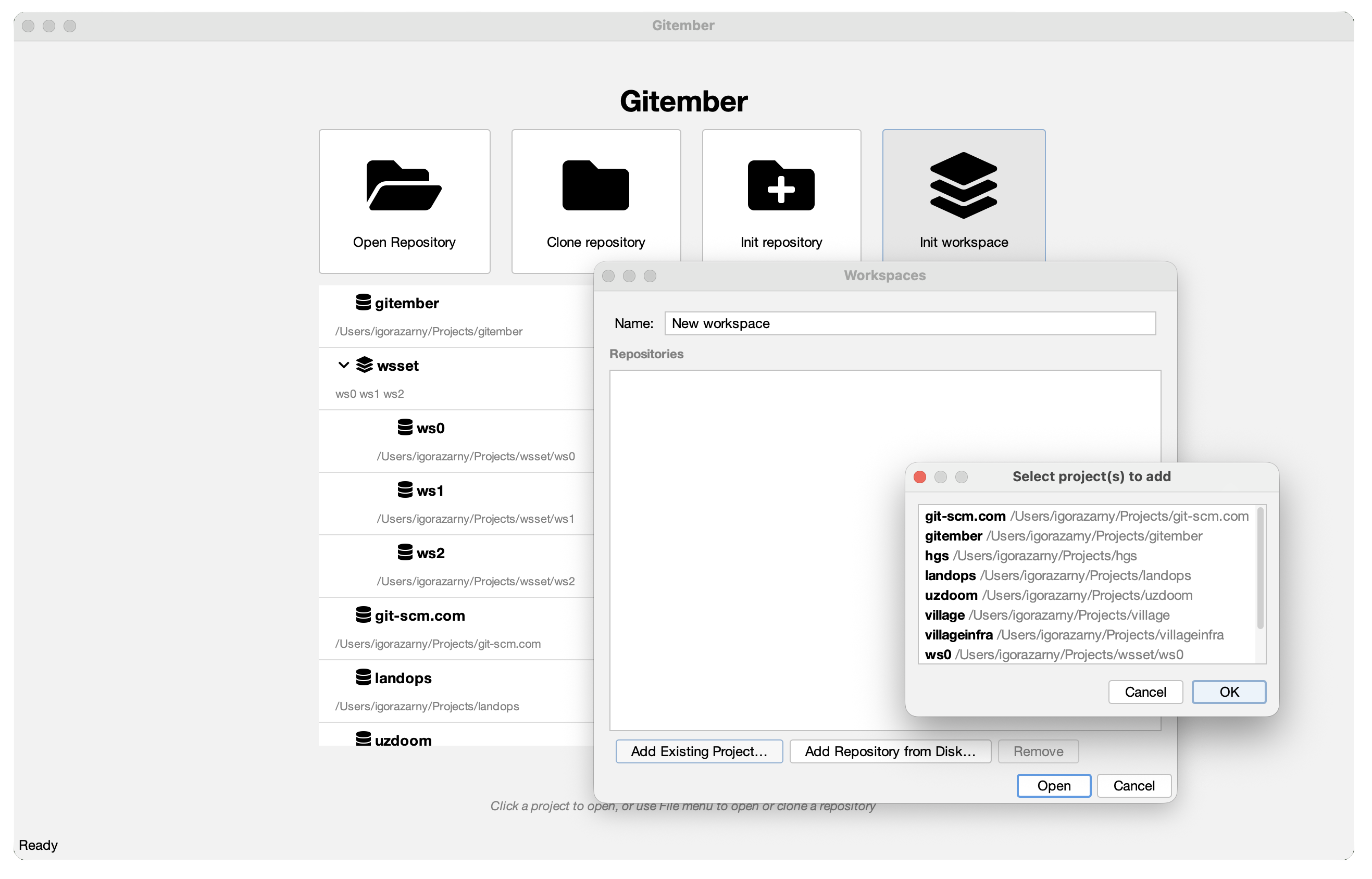
The dialog suggests a name ("New workspace", "New workspace 1", …), which you can rename to anything you like. You then add repositories to it in one of two ways:
- Add Existing Project… — pick one or more repositories from the projects Gitember already knows about (your recent-projects list), via a multi-select list.
- Add Repository from Disk… — browse to a folder on disk. Gitember checks that the
folder contains a
.gitsubfolder and adds it; if it isn't a Git repository, you'll see a warning instead.
Use Remove to drop a selected repository from the workspace before saving.
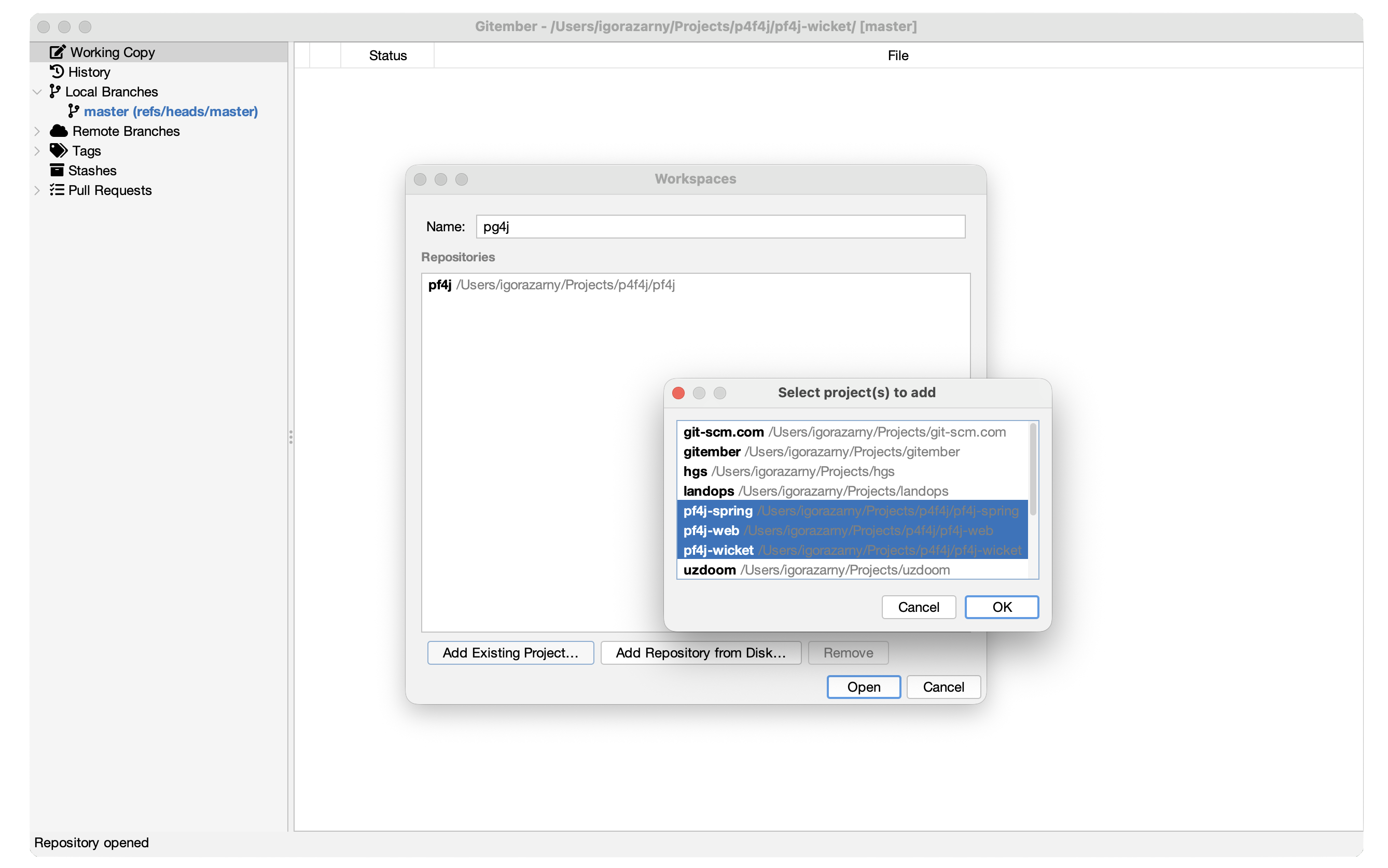
The Add Repository from Disk… option only accepts a folder that is already a Git repository — a workspace cannot initialize a brand-new, empty repository for you. If you need a new repo, create it first (Repository → Init…) and then add it to the workspace.
Nothing is saved while you're editing — click Open to save the workspace and open it immediately, or Cancel to discard your changes.
Opening an Existing Workspace
There's no dedicated "open workspace" picker — workspaces show up alongside your regular projects wherever recent items are listed:
- Welcome screen — recent projects and workspaces are listed together, most recently opened first. A workspace entry has a chevron you can expand to preview its member repositories; click the workspace itself to open it.
- File → Open Recent — recent workspaces are listed below a separator, under the recent projects.
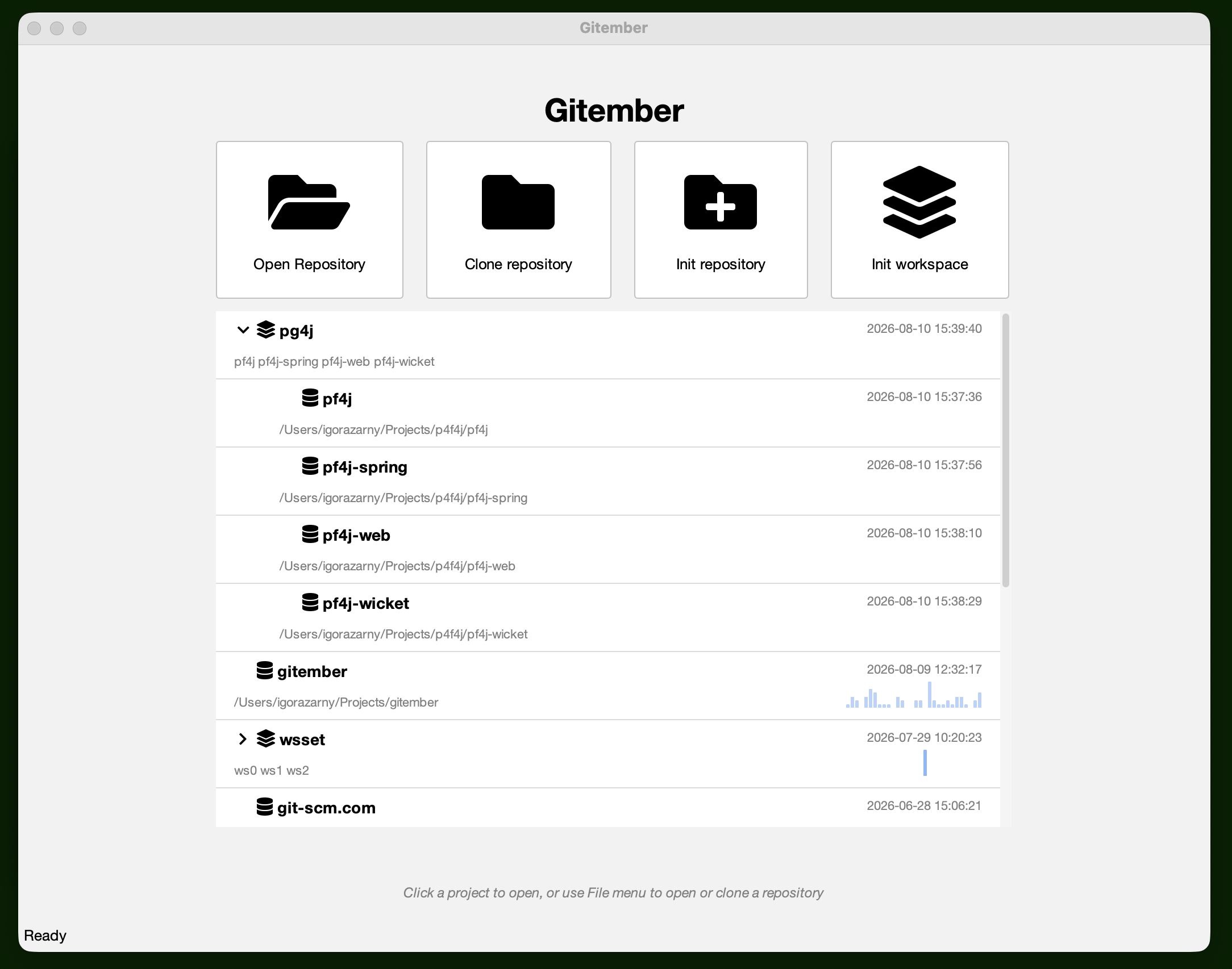
Opening a workspace refreshes its "last opened" time, rebuilds the sidebar tree with one node per repository, and switches the main content area to the Workspace Dashboard.
Synchronized Operations Across All Repositories
With a workspace open, the Workspace menu offers Pull, Push, Fetch, Create Branch…, and Commit… — each acting on every repository in the workspace in one step, instead of one repository at a time.
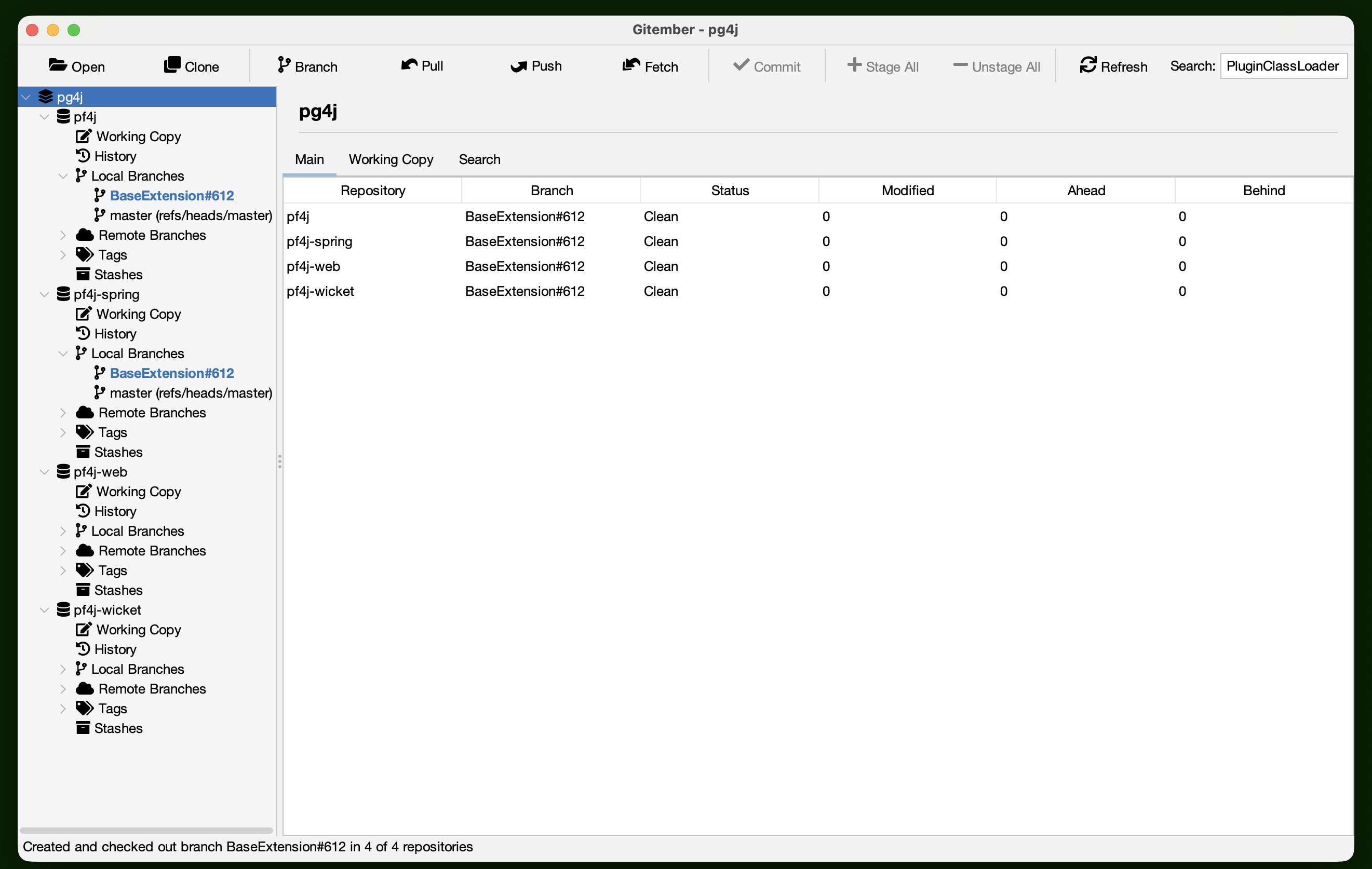
For Branch / Pull / Push / Fetch, Gitember walks the workspace's repositories one after another:
- A repository with no configured remote is skipped (and reported as skipped, not failed).
- Push also skips a repository that has nothing to push, and automatically sets up remote tracking for the current branch when needed.
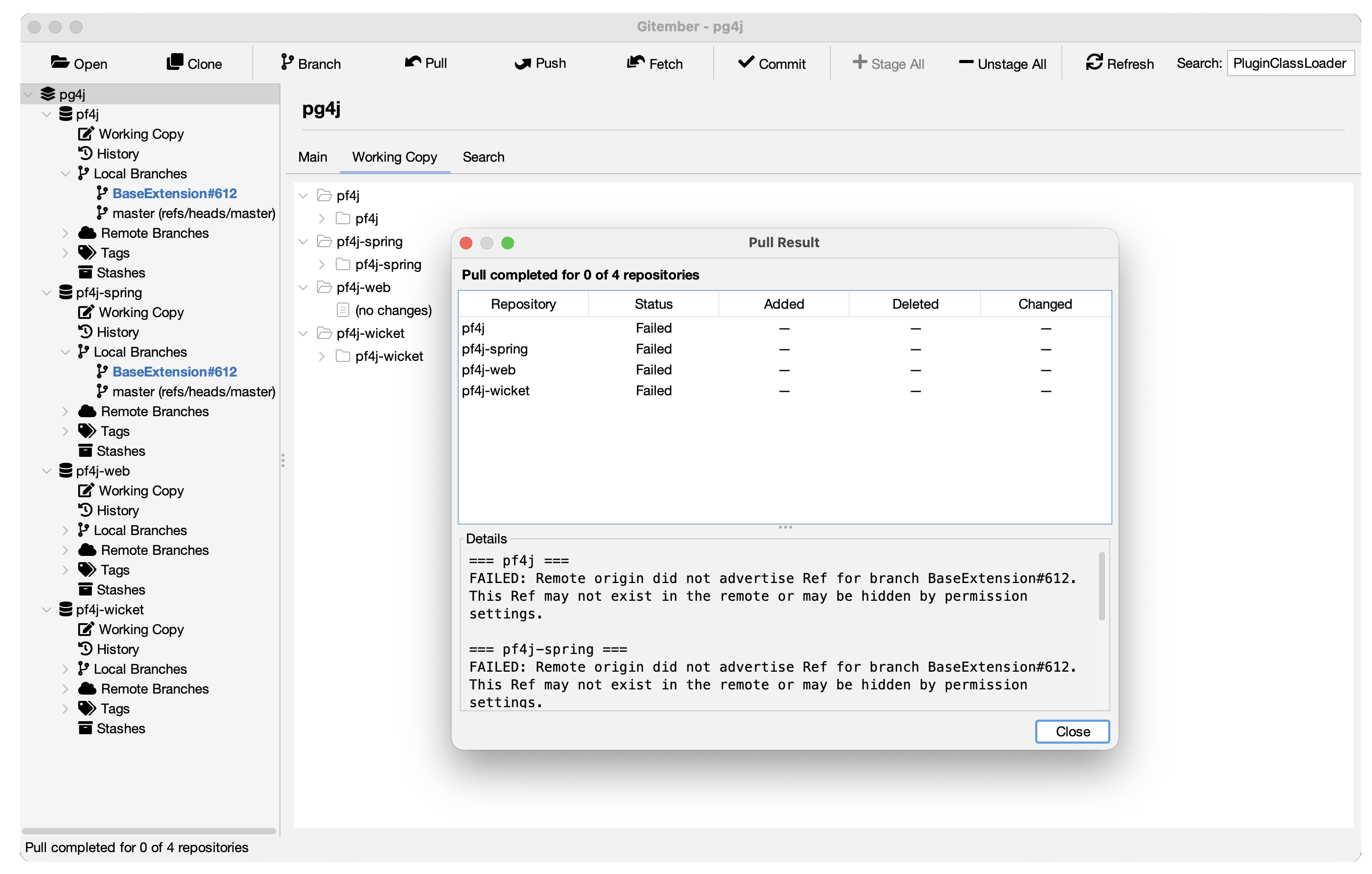
- If one repository fails (e.g. a conflict on pull, or an auth error), Gitember carries on with the rest — a single failing repo doesn't abort the whole run.
- Usually Commit operation end with success. But gitember may warn you about possible issues with merging
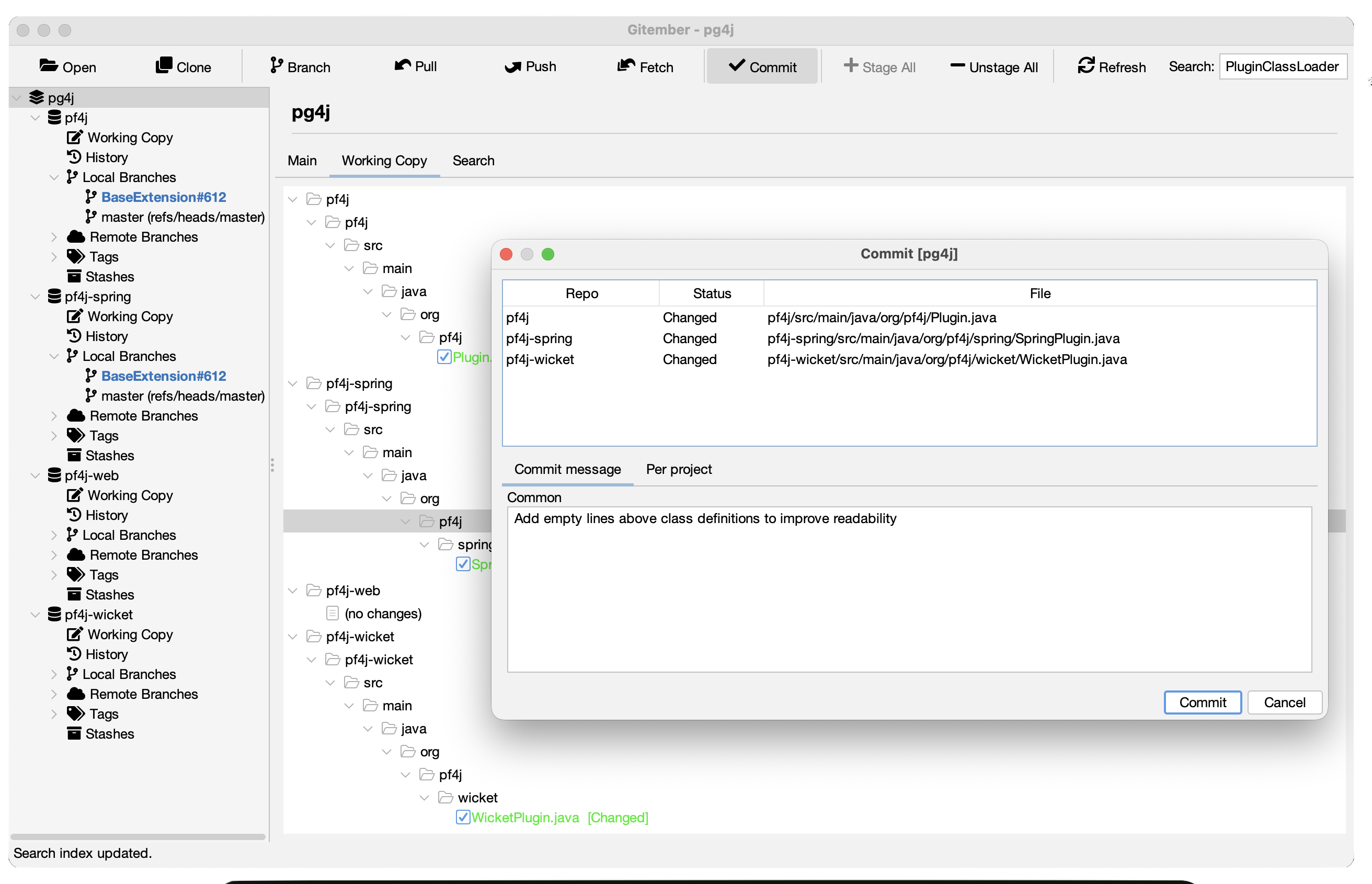
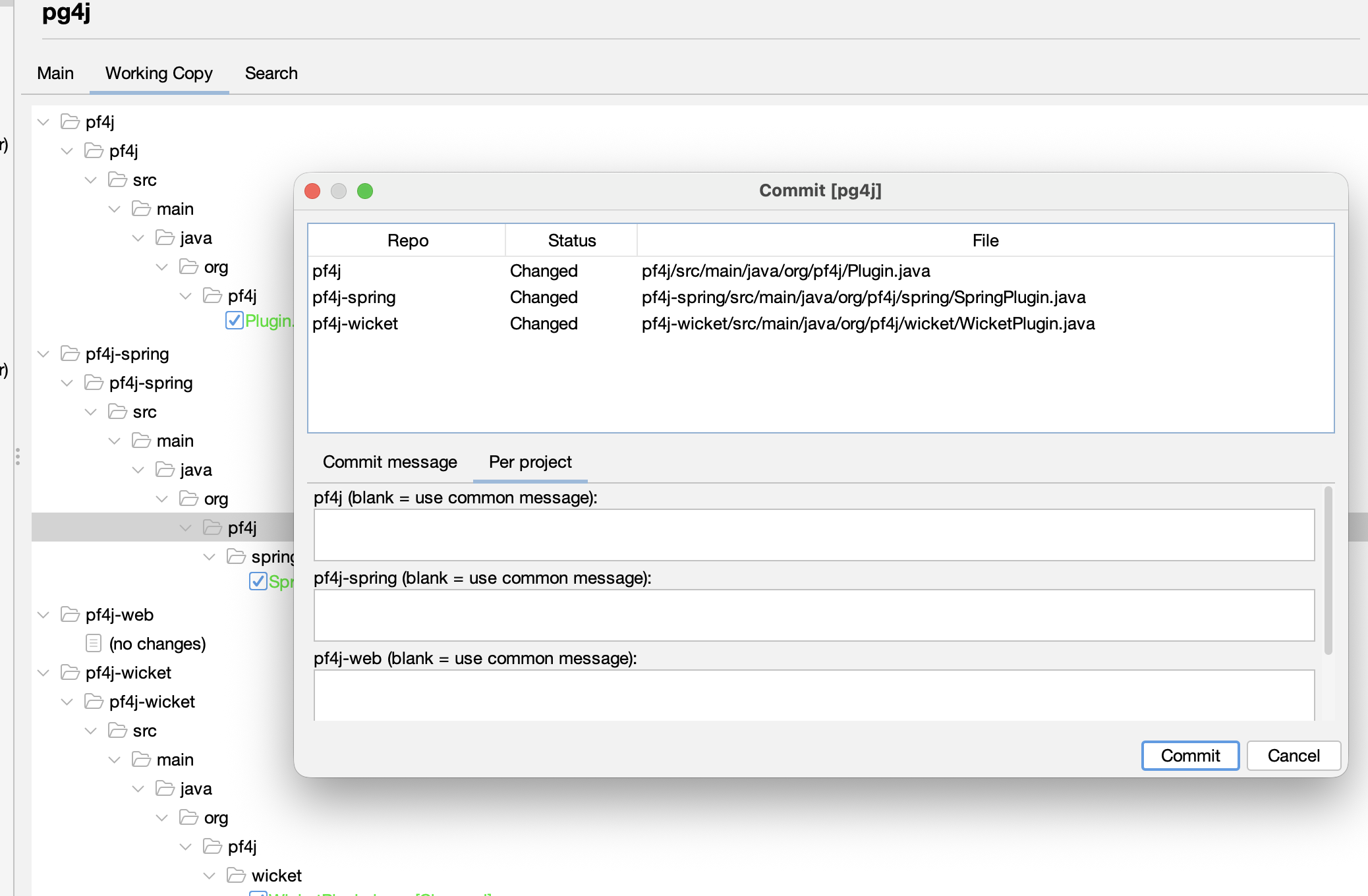
Commit message may be specified for all repos or per repository
When the run finishes, the status bar shows a summary such as "Pull completed for 4 of 5
repositories", and a results dialog lists the outcome for every repository individually.
Commit Across the Workspace
Workspace → Commit… opens the same Commit dialog used for a single repository, but scoped to the whole workspace: the file list shows every staged file from every project (with a Repo column so you can tell them apart).
For the commit message, you can choose between two modes, available as tabs:
- Commit message — one common message, used for every repository unless overridden.
- Per project — a separate message box per repository, each labeled
"
<project>(blank = use common message)".
Fallback rule: if a repository's own message is left blank, the common message is used for that repository instead. At least one of the two must resolve to a non-empty message for every repository that has staged changes, or the commit is blocked with a validation warning listing which repositories still need one.
Gitember can also draft the common message for you and flag risky content before you commit — see AI Features for the AI commit-message generator (which summarizes the combined diff of every staged repository into one message) and the secret leak detector (which scans staged files across all workspace repositories, tagging each finding with the repository it came from).
Commits are applied to each repository one after another. This is not an atomic, all-or-nothing operation across the workspace — if a later repository's commit fails, the earlier ones are not rolled back.
Workspace Dashboard
The Workspace Dashboard is the main view while a workspace is open, organized into three tabs.
Main
A summary table with one row per repository: Repository, Branch, Status, Modified,
Ahead, Behind. Status shows Clean, Modified, or the number of conflicts.
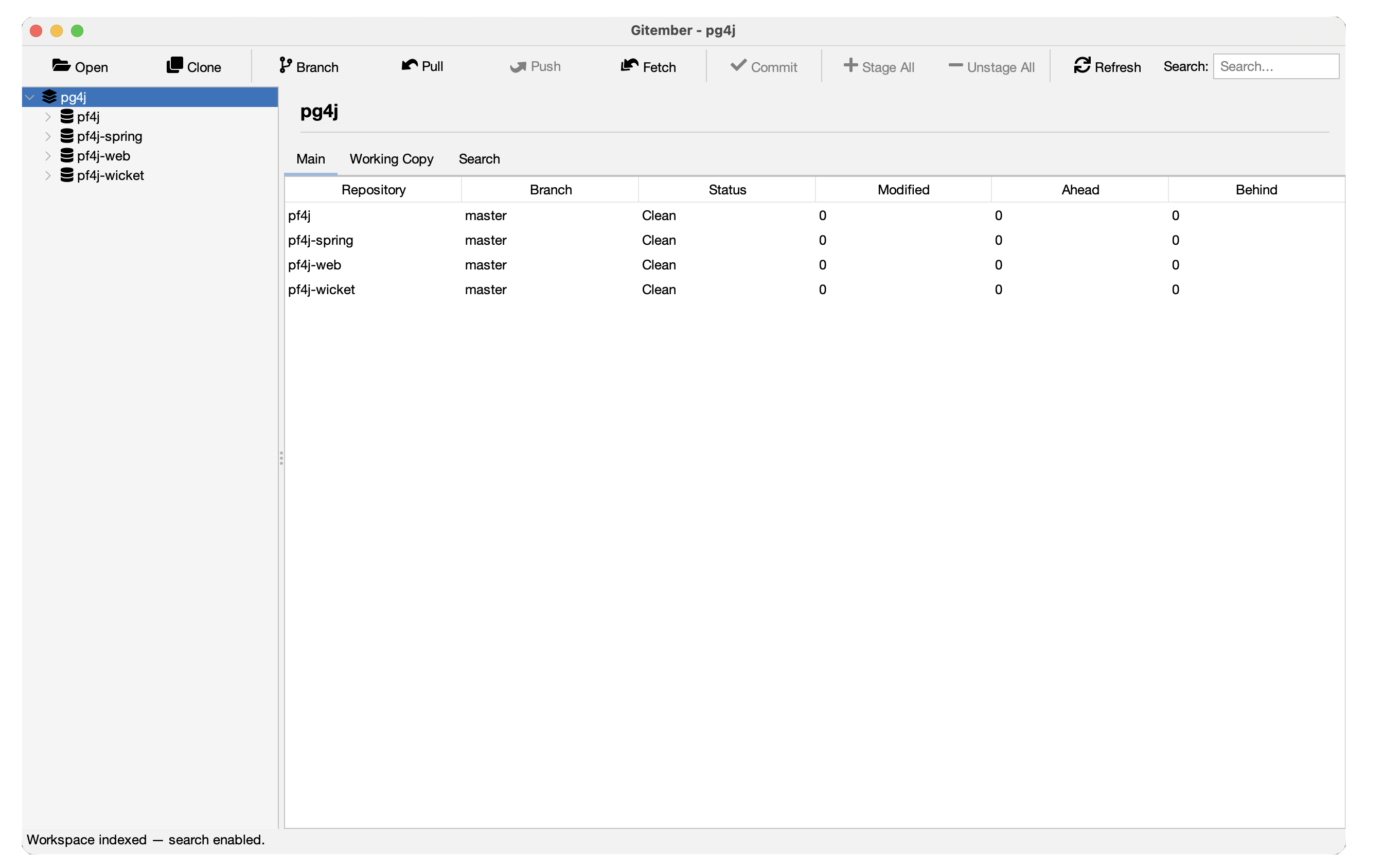 Double-click a row to jump straight into that repository's own Working Copy view (the
sidebar selection follows along too).
Double-click a row to jump straight into that repository's own Working Copy view (the
sidebar selection follows along too).
Working Copy
A single combined tree with one top-level node per repository, and each repository's changed files underneath in their normal folder structure — so you can review what changed in every repository at a glance, without switching between them.
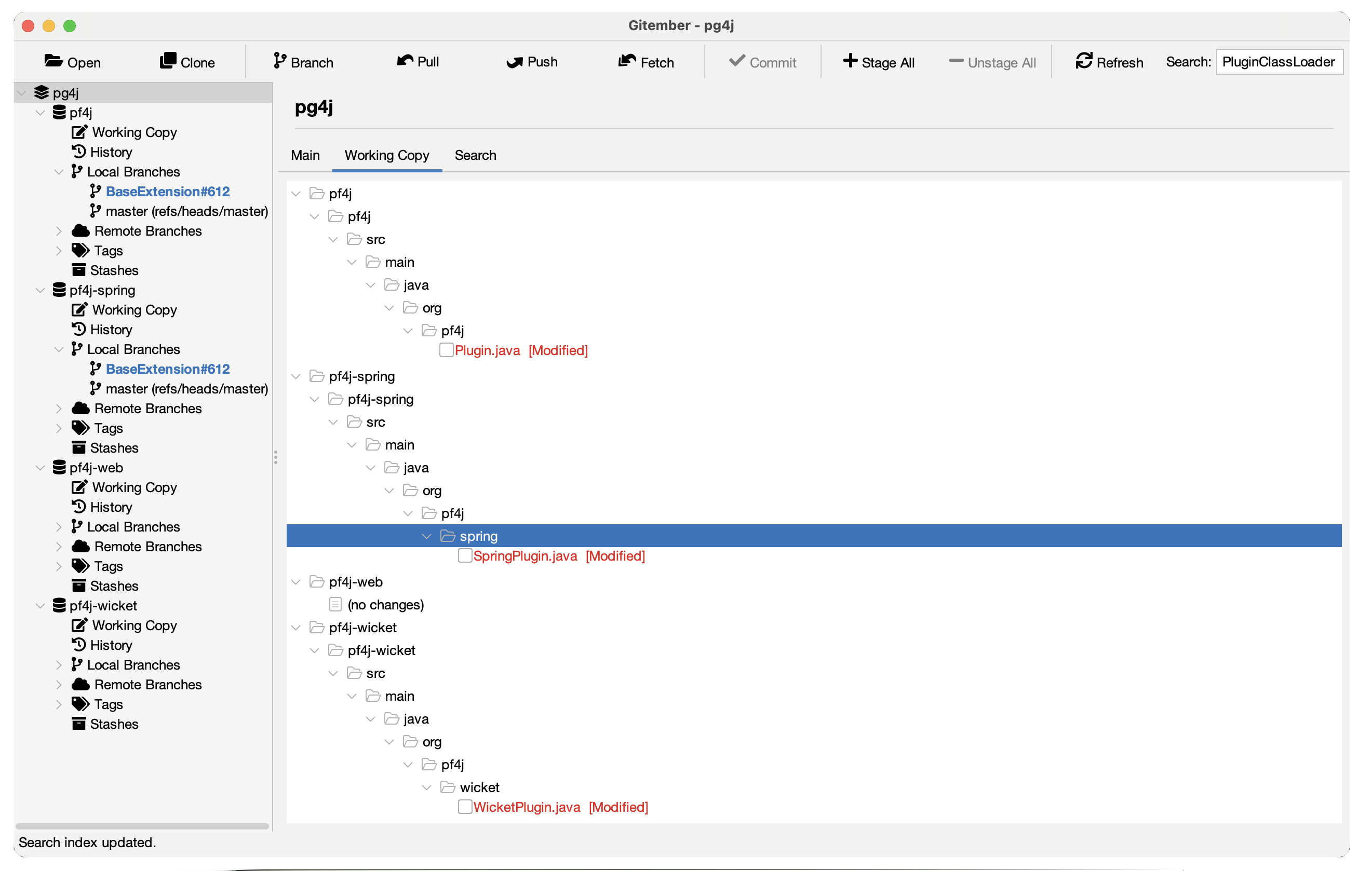
Each file has the usual staging checkbox and a right-click context menu (stage/unstage, discard, view diff, and so on), just like the single-repository Working Copy view — see Working copy for details on those actions.
Search (cross-repository)
Searches the contents of files across every repository's current working copy — not just file names — using a per-repository index that Gitember builds and keeps incrementally up to date as files change.
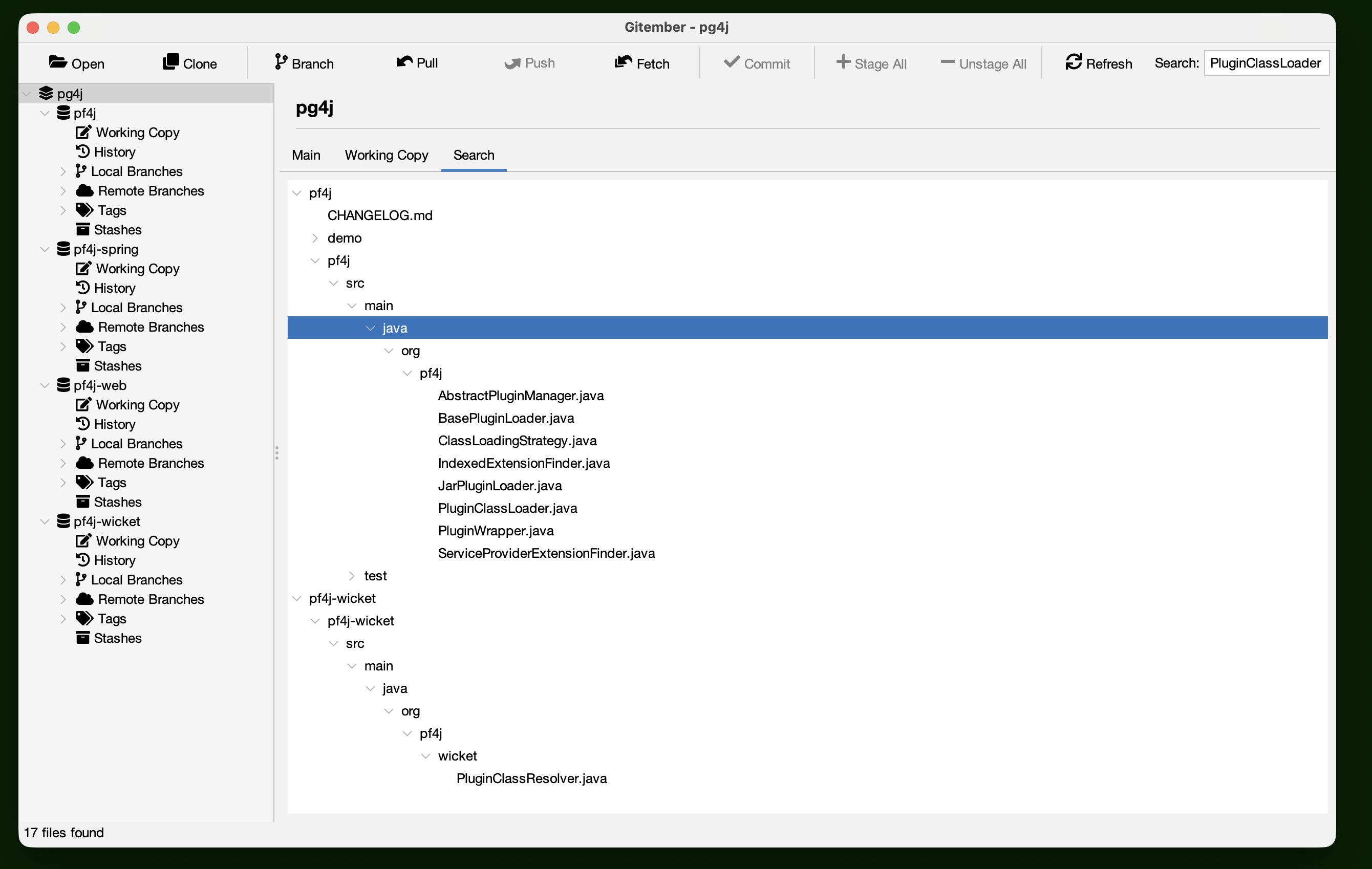
Type at least 3 characters to search; results are grouped by repository the same way as the Working Copy tab. The search field stays disabled until the initial indexing of every workspace repository has finished.
This is not the same as the History search or Extended Search features, which search commit history (messages, SHAs, and — for Extended Search — indexed commit content). Workspace Search looks only at the current working copy contents, across all repositories at once.
Limitations
- Adding a repository to a workspace requires it to already exist on disk — a workspace cannot create a brand-new repository for you.
- Pull / Push / Fetch / Commit run sequentially, one repository at a time, not in parallel.
- Workspace commits are not transactional (yet) : if committing one repository fails partway through, repositories already committed are not rolled back.